In the Pohoda accounting system you can bill a transaction in CZK, which were processed by a payment gateway or a terminal, in two ways:
Statement import – when the statement is loaded, a new record is created for each transaction in the bank's agenda. After creating these new records, liquidate the documents and receivables according to the same VS.
Upload of notice – no new movement is created in the bank's agenda when the notice is loaded. If such a movement exists, then the individual items of the requisition are written into it and the documents and receivables are liquidated according to the same VS and amount.t.
If the transaction is a payment or a refund, the client's ID will be used as the variable symbol (VS) in the ABO file. In the case of a business loan, the VS will contain the loan agreement number. The client's ID must be in a numerical format with a maximum length of 10 digits. If it contains anything other than the specified format, 'VS platby' will be displayed here.
If you want 'VS platby' to be used in item no. 7 in the ABO file (instead of 'ID od klienta'), you just need to enter any letter into 'ID od klienta', and 'VS platby' will automatically be used in item no. 7.
Statement import
To make your work easier, we have created a description of importing a transaction statement in ABO format (attachment .gpc) into the accounting software Pohoda.
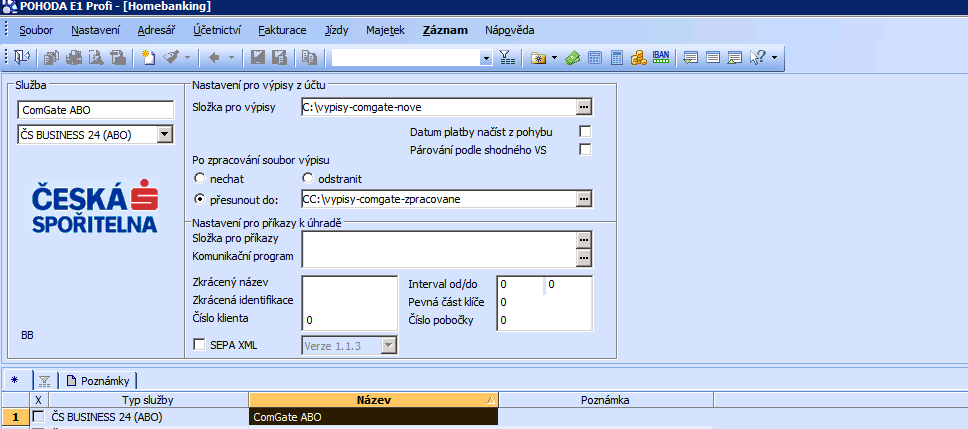
Adding Homebanking services
The first step is to set up and configure the electronic payment services, Homebanking. To set up, select the Settings menu item and click on Homebanking". In the second step, you add your bank account in the Bank Accounts agenda.
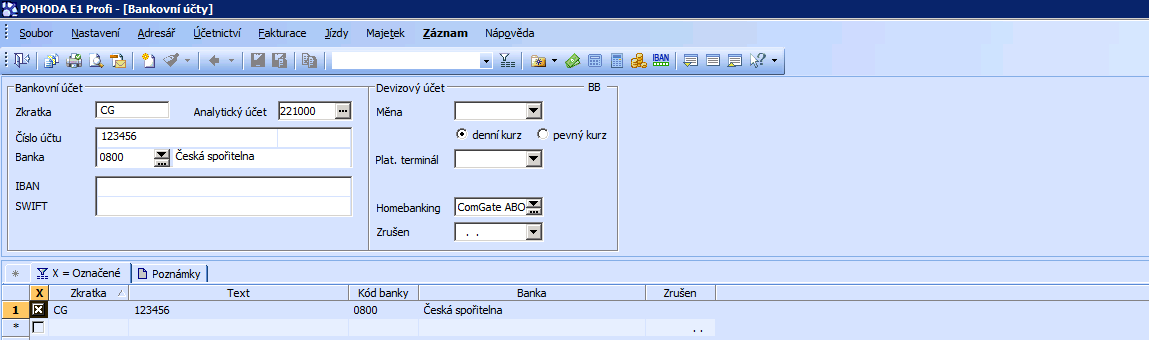
Adding a bank account
Next select a menu item Settings, select Bank accounts, where you will insert a new record.
Fill in the following items accordingly:
Shortcut – enter CG
Analytic account – enter 221000
Account number – enter a bank account number from the Client portal. The number can be found in a section Services → Checkouts → select your shop → Bank connection tab, in the Fictitious ABO account column
Bank – you will enter Česká spořitelna
Homebanking – enter Comgate ABO
Accounting in ABO format
We send you a statement of transactions in ABO formats by e-mail daily. You can find daily statements in the Client portal in a section Billing → Payouts. For the required payout, click Download and select GPC (ABO) - Fees individually or GPC (ABO) - Fees summary.
The accounting procedure is as follows:
store the accounting file into a file
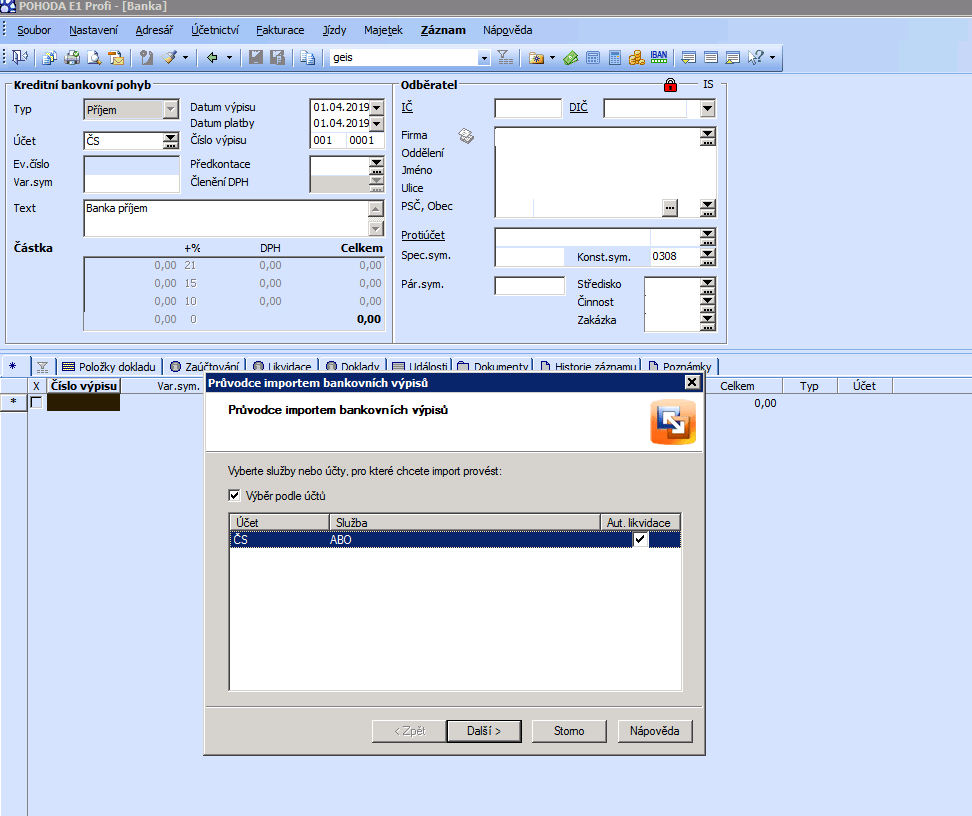
click on the menu item Accounting and select a file Bank
click on the menu item Record and select a file Load statement
select a service Comgate ABO
Select files which you want to process and enter Next. With this, your transactions are accounted for in the selected file. 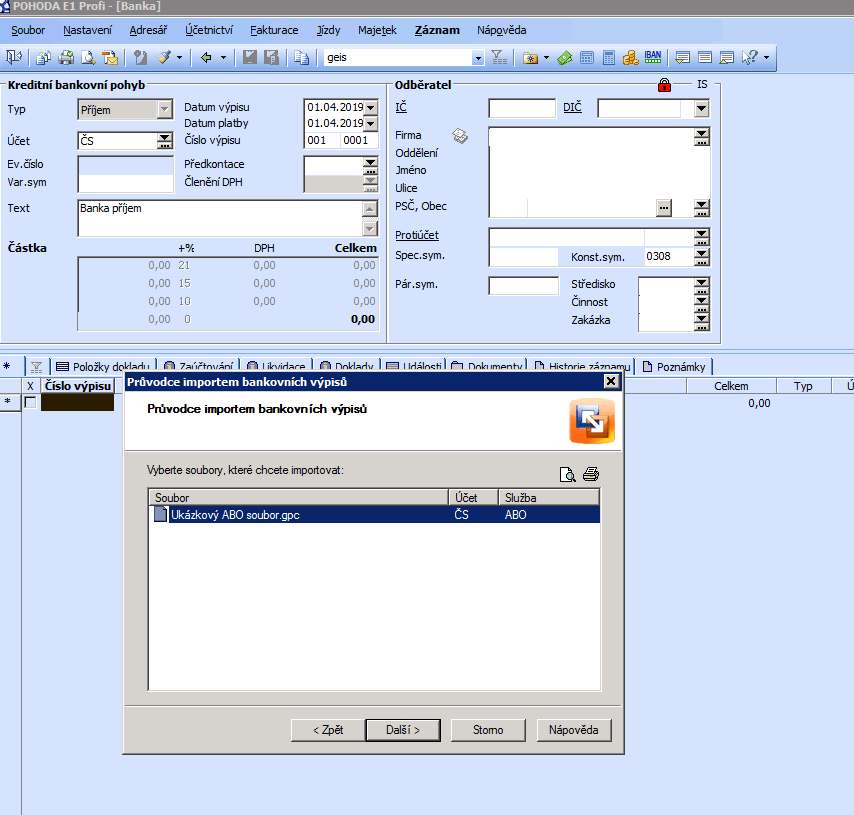
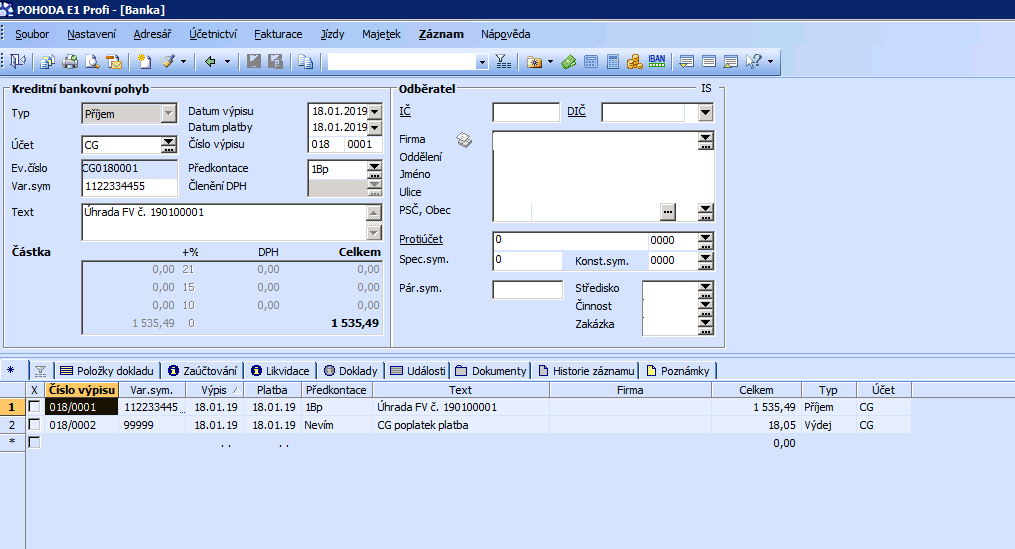
Transactions are shown in breakdown by the following screen.
Uploading notice
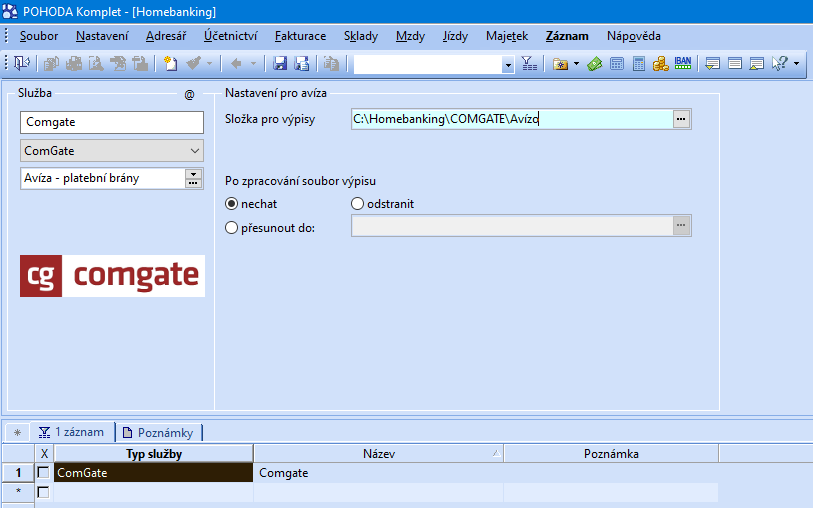
In the first step, in the Homebanking section create a new service "Comgate" – there you will create a path to the notice files.
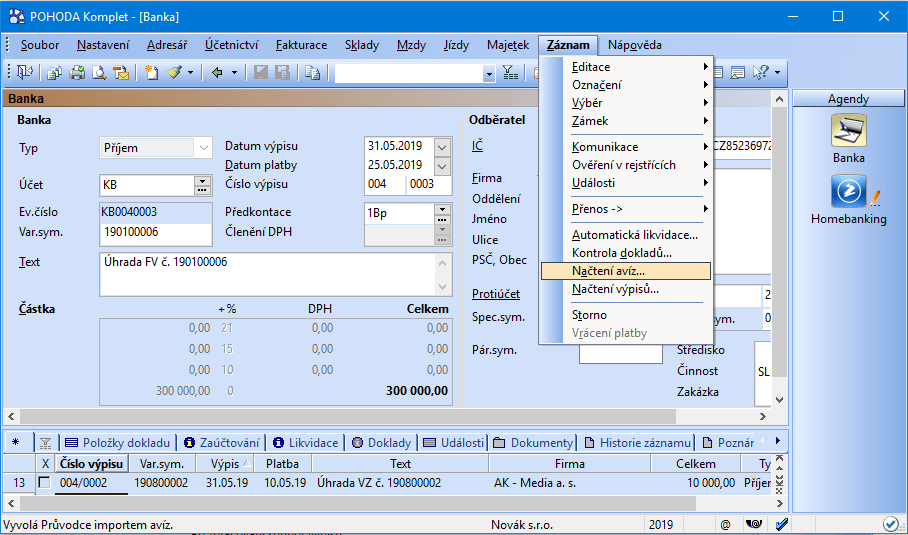
Select the Notice Load in the Bank agenda.
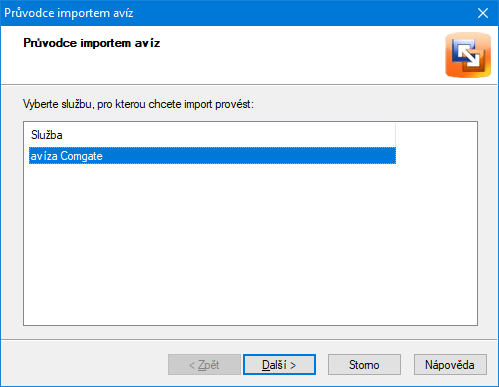
Guide for the Notice Load will open. You can select the created service of Comgate Notice.
In order to verify the uploaded payments, you can also preview the file in this step before loading the Notice.
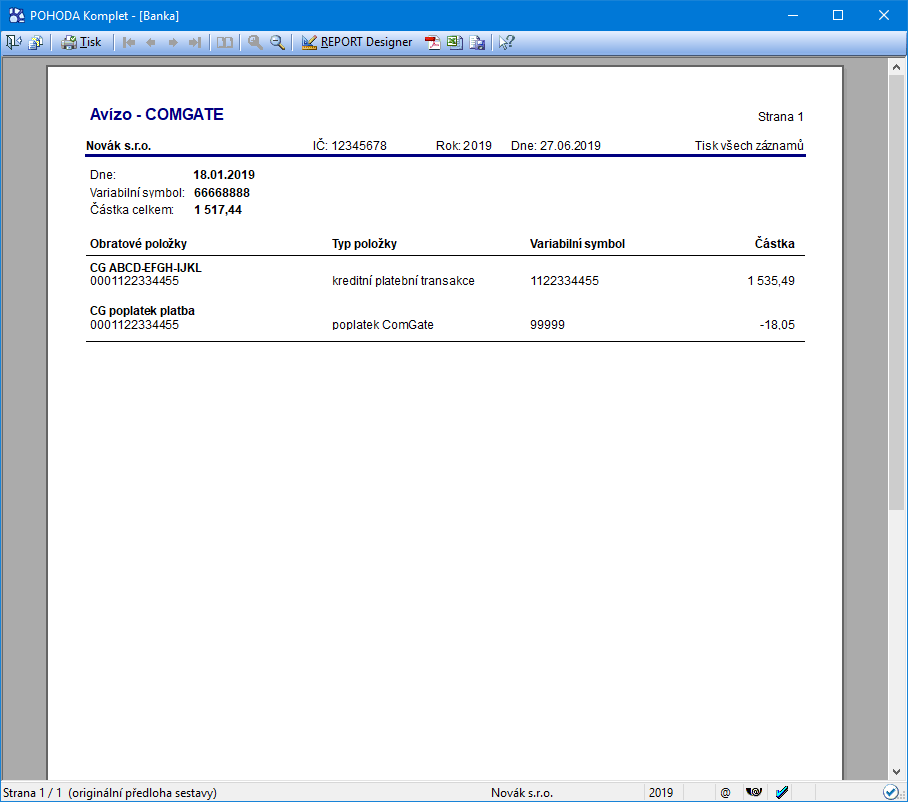
After pressing the Next button, the notice will be processed in Pohoda and the reading result will be displayed.
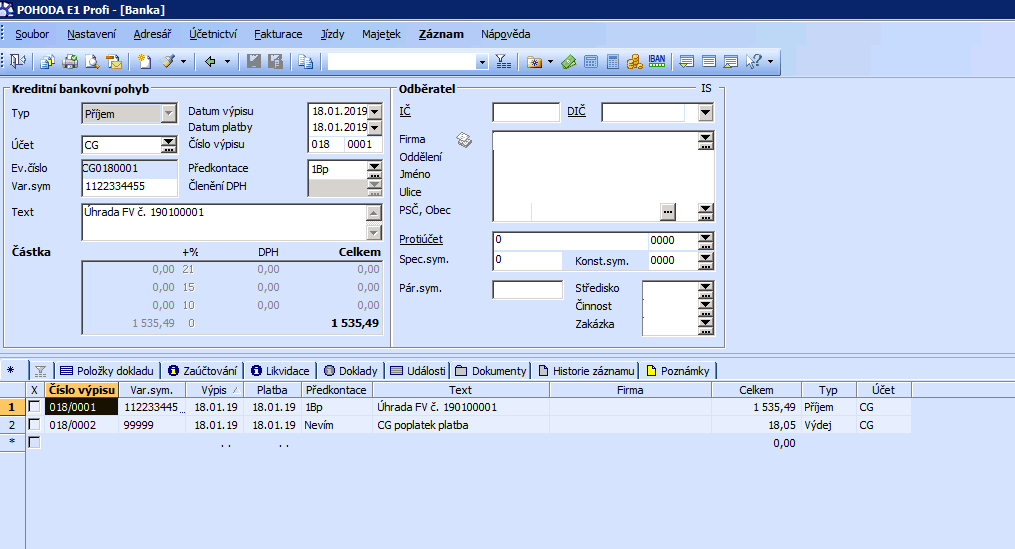
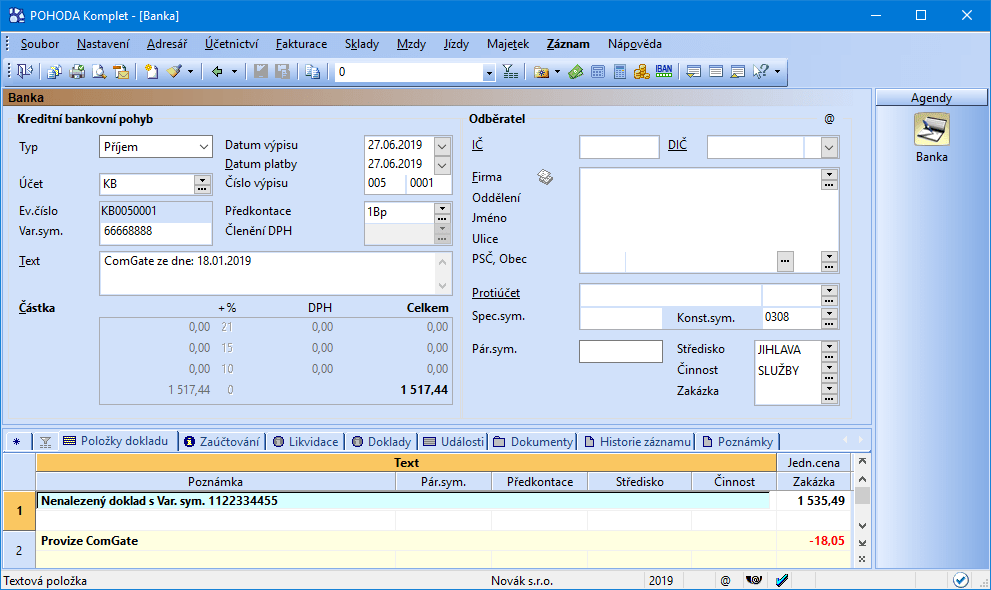
After pressing the button Finish the user will be redirected back to agenda Bank, where the data from loaded Notice file will be filled into the banking transaction on a bookmark Document items.
Bulk upload of daily statements
When importing statements/notice into POHODA, it is possible to select multiple files at once in the import wizard by marking them in bulk. The selection can be done e.g. with the keyboard shortcut Ctrl+mouse click on individual files. All statement/notice files marked in this way are then imported in bulk.
 When importing notice in bulk, POHODA looks up the notice with the total amount of the notice in the "Bank" agenda. The notice then divides the total amount of the bank document into individual items. The statements are imported as separate bank documents.